How To Free Up To 20GB Space After Windows 10 Anniversary Update?
The Windows 10 Anniversary update is huge and comes with lots new
features. But, a lot of space is consumed by the leftover Windows
files. You can delete them by using the Disk Cleanup utility present in
Windows 10 and free up to 20GB space.
Windows 10 Anniversary Update was released on August 2 with some freezes and crashes. The update comes with a plethora of features which were not a part of earlier Windows versions.After
a large Windows update, a huge amount of space is consumed by the files
from the previous Windows installation. This happens if you use the
internal Windows update for upgrading rather performing a clean install
using a bootable disk.
You can rid of the unnecessary data and free some space on your computer using the Disk Cleaner Utility:
Important: Please note that deleting these files won’t let you roll back to the older version of Windows 10.
If you have something to add, tell us in the comments below.
- Open This PC/My Computer.
- Right Click on your Windows installation drive (For example, C in my case).
- Click Properties.
- Click Disk Cleanup.
- In the Disk Cleanup window, click Clean up system files.
- Make the sure the Previous Windows Installations(s) check box is ticked. Also, tick all the checkboxes for the items you want to clean.
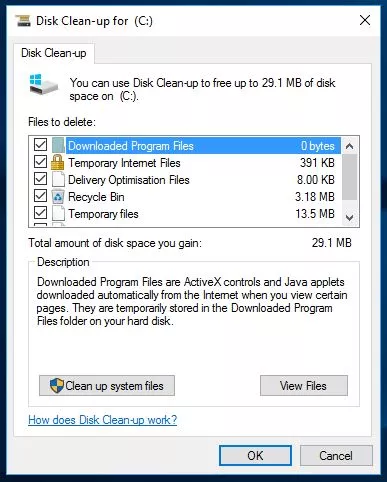
- Click Ok and the process is completed.
Important: Please note that deleting these files won’t let you roll back to the older version of Windows 10.
If you have something to add, tell us in the comments below.


Comments
Post a Comment